Guide
Sign in with a QR code on Android handhelds: scan the password instead of typing it
Instead of typing user name and password on a handheld, you scan a QR code that holds both, encrypted, and enter a short PIN. In Industrial Kiosk Browser a small script does this without any change to the web app. Whoever copies the QR code can try a short numeric PIN quickly, though – letters and digits, 10 characters or more, last long.
 By Jo Pfattheicher Software development, products and AI · ICT Baden · Last updated:
Why signing in on a handheld is so tedious
On a handheld the on-screen keyboard is small, people often wear gloves, and devices are handed over between shifts – so people sign in a lot. Long passwords with special characters take time, typos lock accounts. In practice this ends with notes stuck to the device or one shared account for everyone – both worse than a personal account that signs in quickly.
The options at a glance
-
Type the password
Always works, needs nothing. Slow and error-prone on small keyboards; invites short or written-down passwords.
-
Barcode with the password in plain text
Fast, but every scanner and every camera reads the password. Not recommended.
-
Sign-in through a central identity system with badge or NFC
Strongest, if the web app supports such a system: hold the badge to the device, signed in. Needs infrastructure and support in the web app.
-
Encrypted QR code with PIN
The middle way without changing the web app: user name and password are encrypted in the QR code and only decrypted with the PIN on the device. How well that protects depends on the PIN length – see “What the PIN protects”.
How signing in with a QR code works
Create the QR code
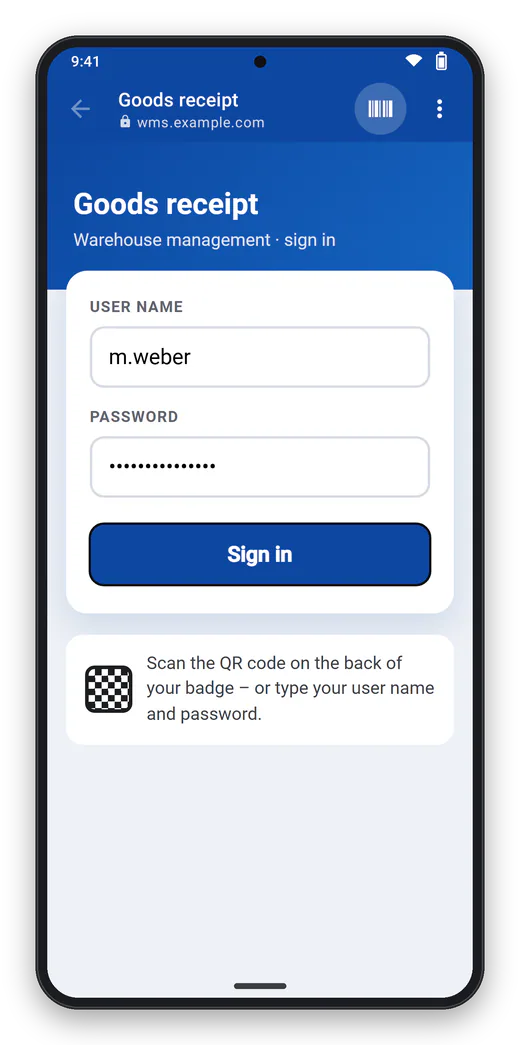
In the generator on this website enter user name, password and PIN, optionally an expiry date. The generator computes in the browser only, nothing is sent. Print the QR code, for example on the back of the badge; hand out the PIN separately.
Open the sign-in page and scan
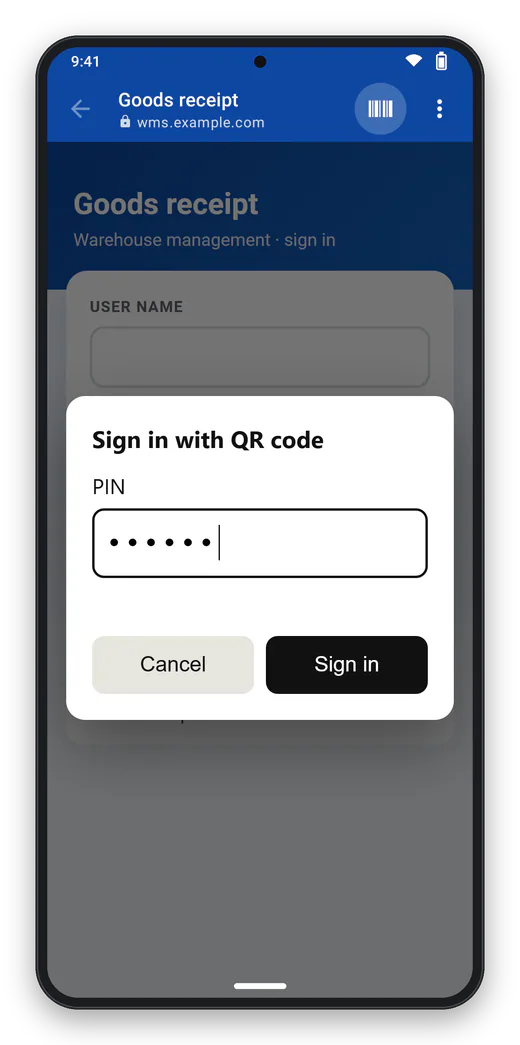
On the device, the sign-in page of the web app is open in Industrial Kiosk Browser. The script takes the scan out of the page – the encrypted text never lands in a field – and asks for the PIN.
Enter the PIN
With the right PIN the script decrypts the code, fills user name and password into the form and presses the sign-in button. A wrong PIN is refused; after five wrong PINs in a row the script ignores login codes for 15 minutes.
Technically: AES-256-GCM, the key comes from the PIN with PBKDF2-SHA256 and 600,000 iterations. A code is about 130 to 200 characters – a QR code every scan engine and the camera read. On a Zebra device with Android 15 decrypting takes about half a second. The format and the script are open, see the guide.
What the PIN protects – and what not
Whoever has QR code and PIN can sign in – so treat the code like a key. The PIN protects a lost code against quick tries on the device: after five wrong PINs there is a 15-minute pause. That lock lives in the page; it is a speed bump, not a lock.
Against someone who copies the QR code – a photo is enough – a short PIN helps little: they try on their own computer without a limit. The 600,000 iterations make each try slow, but a current graphics card still manages roughly 15,000 tries per second:
| PIN | Possibilities | Time (approx.) |
|---|---|---|
| 4 digits | 10,000 | under a second |
| 6 digits | 1,000,000 | about a minute |
| 8 digits | 100 million | about 2 hours |
| 10 characters, letters and digits | about 8 × 10¹⁷ | far longer than any password lifetime |
Order of magnitude from benchmarks for PBKDF2-SHA256, converted to 600,000 iterations; the generator shows the estimate for the PIN you enter.
- Use it for accounts whose password you would also write on a card: personal accounts with only the rights needed on the handheld – not administrator accounts.
- Where codes can be copied, use a longer PIN of letters and digits (10 characters or more).
- Set an expiry date and create new codes after a password change – an old code then simply stops working.
- When a code is lost: change the password of the account.
Trade-off: when QR login is worth it – and when not
Put plainly: with a strong password in a QR code behind a 6-digit PIN, for anyone who gets hold of the code the account is only as well protected as the PIN. QR login does not make a password stronger – it makes it more convenient. Whether that is a gain depends on what happens without it.
And there, practice often looks worse: whoever has to type long passwords on a handheld every day picks short ones, writes them on a note on the device or simply prints the password as an ordinary QR code – unencrypted, readable by every scanner and every phone camera. Against those shortcuts an encrypted code with a PIN is clearly better. Against a strong password that really gets typed, it is weaker.
-
Fits: accounts only for work on the handheld
Separate accounts with few rights (goods receipt only, picking only), reachable only in the company network, on managed devices in kiosk mode – plus an expiry date and new codes with every password change.
-
Fits: where plain-text QR codes or notes are the alternative
If passwords are already written down, printed as barcodes or shared between colleagues, the encrypted code with a PIN is the better choice – and usually the one that actually gets used.
-
Does not fit: the central company password
If the password is the same as for email, computer and VPN, a copied code with a short PIN exposes all of that. Then set up a separate account for the handheld application – or do not use QR login.
-
Does not fit: administrator accounts and access from the internet
Accounts with far-reaching rights, or sign-in pages reachable from outside without a second factor, do not belong on a card – not even encrypted.
Warning: obscurity is not security
A QR code nobody can read looks safe – but it is only as safe as the PIN is long. The encryption (AES-256) is strong; the short PIN is the weak spot. That is why the format is deliberately open: security must not depend on nobody knowing how the code is built, only on the PIN. Whoever needs more protection uses a long PIN of letters and digits, or another option from “Options”.
Step by step: set up QR login in Industrial Kiosk Browser
Add the script to the profile of the web app
Take the script qr-login.js into the profile as a resource and add it as an injection for the sign-in page. It is ready to adapt in the example configuration qr-login.json.
Name the fields if needed
The script looks for usual field names such as
username, fields of type email and the first password field. If the fields are named differently, an injection before it names the CSS selectors.Test on the device
Open the sign-in page, scan the QR code, enter the PIN. If the keyboard does not open by itself, tap the PIN field once.
"injections": [
  { "match": { "url": "https://login.example.com/", "type": "prefix" }, "when": "pageLoaded", "js": "res:qr-login.js" }
]res:qr-login.js is the script as a resource of the profile.{ "match": { "url": "https://login.example.com/", "type": "prefix" }, "when": "pageLoaded",
"js": "window.IKB_QR_LOGIN = { user: '#j_username', password: '#j_password', submit: true };" }user, password and submit; there are also maxTries and lockMinutes.Requirement: the sign-in page runs over https. Encryption in the browser (WebCrypto) is only available on secure pages; on an http:// page the script says so and does nothing else. Sign-ins over several pages or with a second factor need their own selectors or a small change to the script – it only fills in user name and password.
Our product
Industrial Kiosk Browser – Kiosk browser for rugged Android devices
Kiosk browser for web apps on rugged Android devices: scans into the focused field, kiosk mode, allow list, JavaScript injections such as the QR login script, configuration through your MDM – open source, no device licence.
Frequently asked questions
Does the web app have to be changed to sign in with a QR code?
No. The script runs as an injection in Industrial Kiosk Browser, fills user name and password into the existing sign-in form and presses its sign-in button. The page only has to run over https.
Isn’t a QR code with a password insecure?
In plain text, yes. Here it is encrypted with AES-256, and only the PIN gives the key. How long that holds against someone who copies the code depends on the PIN: a 6-digit numeric PIN is tried in about a minute, letters and digits with 10 characters or more last far longer.
Is a QR code with a PIN more secure than a strong password?
No – against someone who copies the code it is only as strong as the PIN. It is more convenient, and far more secure than a written-down password or a password as an unencrypted QR code. It fits accounts with few rights on managed devices, not the central company password or administrator accounts.
Are password or PIN sent anywhere?
No. The generator encrypts in the browser, the script decrypts on the device. Only what the sign-in form of the web app sends anyway is sent.
What happens with a wrong PIN?
The sign-in is refused. After five wrong PINs in a row the script ignores login codes for 15 minutes. That lock does not protect against a copy of the code – only a long PIN does.
Does a QR login code expire?
If an expiry date was set when it was created, yes: after that the script reports the code as expired. Without one it is valid until the password of the account changes.
More guides
- Barcode scanner for PC: handheld scanner, webcam or screen? – Handheld scanner, webcam, screen or phone: which option fits when – compared honestly.
- Lock a Windows PC but keep the screen visible – What Win+L, screen savers and kiosk mode can do – and when a see-through screen lock is the right choice.
- Android keyboard with function keys: F1 to F24 for terminal emulation on handhelds – F1–F24, Esc and Insert on Android handhelds: hardware keys, the emulator’s toolbar, an external or an on-screen keyboard – which option fits when.
- Barcode scans not arriving in the browser on an Android handheld: causes and fixes – Profile, keystroke output, focus, Enter: why barcode scans go missing in the browser on Android handhelds – and which fix suits which situation.
- Find orphaned SIDs and Everyone permissions on Windows file servers – Account Unknown, Everyone can write, inheritance broken: how to find risky permissions on a file server – with built-in tools or a report.
- Check Windows hardening offline – without an agent, on plant, lab and control-room PCs – Built-in commands, central tools or a portable collector: how to check Windows hardening on plant PCs without installing anything – compared honestly.
- ChatGPT and Copilot at work: what can go in, and what cannot? – Which data may go into which version of an AI service, what stays out and what belongs in a short AI policy for your company.
- An industrial client for terminal emulation and web apps: licensing, and an open-source option for the web part – Per-client licensing and the subscription model of an industrial client – and where Industrial Kiosk Browser and Industrial Keyboard fit and where they do not.
- Introducing AI in a mid-sized company: where to start? – Where a mid-sized company starts: the first workflow, what to settle beforehand and which false starts to avoid.
- AI training for employees: what does the EU AI Act really require? – What Article 4 of the EU AI Act asks of companies, how to document it with little effort and why training alone changes little.
- How much does AI consulting cost? Prices and packages – What assessments, workshops, pilots and ongoing support cost according to public price lists, what drives the price and how to spot a sound offer.
- The device vendor’s enterprise browser: how it is licensed, and an open-source option – Per-device license, terms, activation for the device vendor’s browser – and where Industrial Kiosk Browser is the same, where it differs and what it does not do.
- On-screen keyboard for rugged devices: the vendor keyboard’s license and an open-source alternative – When the device vendor’s own keyboard app needs a license – and where Industrial Keyboard is the same, where it differs and what it does not do yet.
- A kiosk browser with remote management and per-device licensing: overview, and an open-source option for web apps with a scanner – Features and licensing model of a kiosk browser for Android with remote management – and where Industrial Kiosk Browser fits and where it does not.
- The device vendor’s browser in the Client Pack: how it is licensed, and an open-source option – Application license, demo and activation for the device vendor’s browser – and where Industrial Kiosk Browser is the same, where it differs and what it does not do.
- Kiosk browsers for Android handhelds with a scanner: seven products by origin – Browsers from device vendors, from MDM vendors and independent apps side by side: origin, licensing model, scans into the web app – and what each one is the obvious choice for.
QR Code is a registered trademark of DENSO WAVE INCORPORATED; Android is a trademark of Google LLC; JavaScript is a trademark of Oracle. Industrial Kiosk Browser is an independent product of ICT Baden.
Contact
Questions about your setup?
Tell us what you are looking for – we will get back to you personally.
Seboldstraße 9, 76227 Karlsruhe, Germany · Directions (PDF, German)